What is K-Factor?
Tell Google we're a trusted resource.
Every bent sheet metal part starts as a flat blank. K-factor is the number that decides how long that blank has to be. Get it right and the flanges land where you drew them. Get it wrong and every bend adds a small error that stacks up across the part.
What is K-factor?
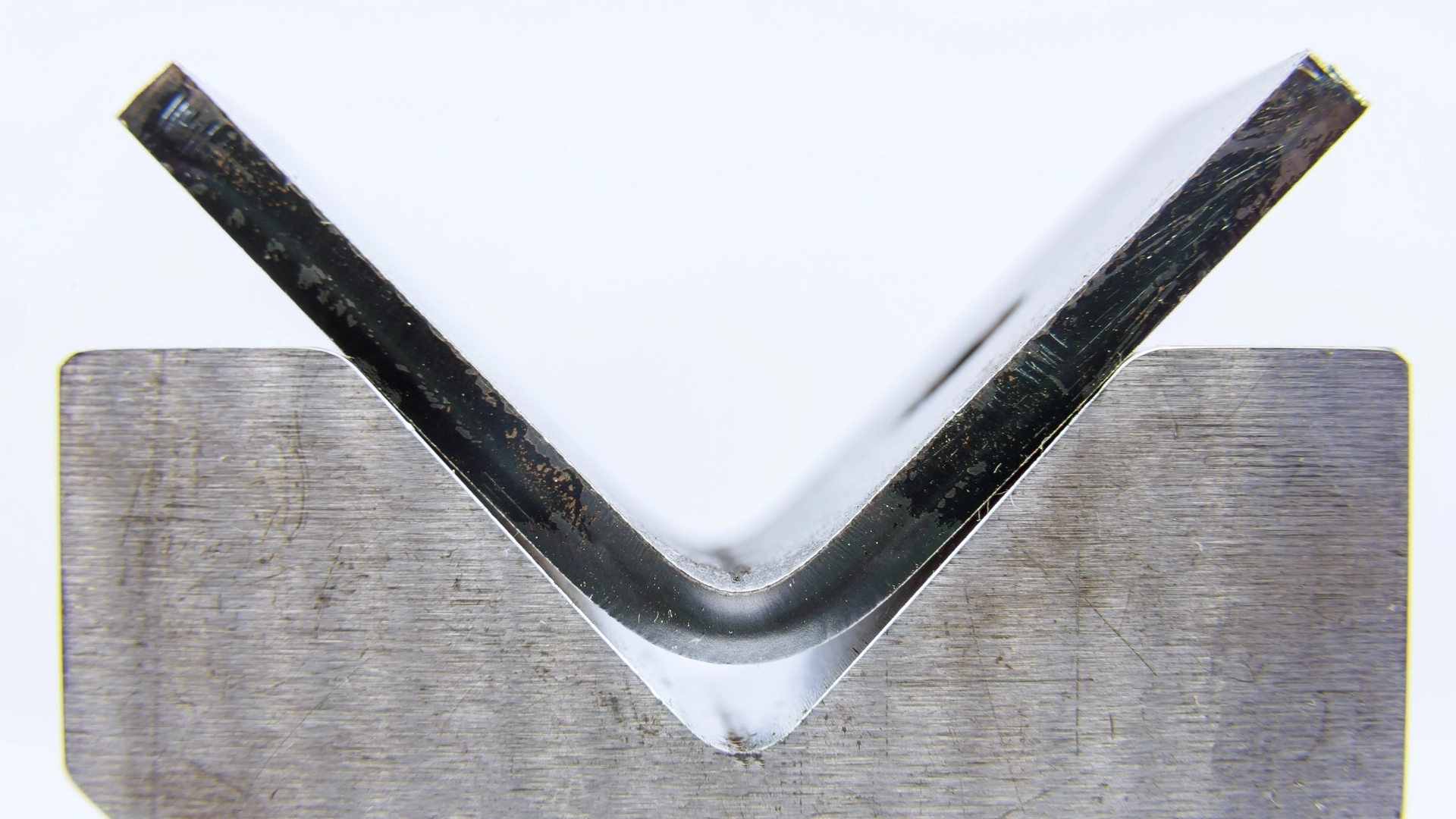
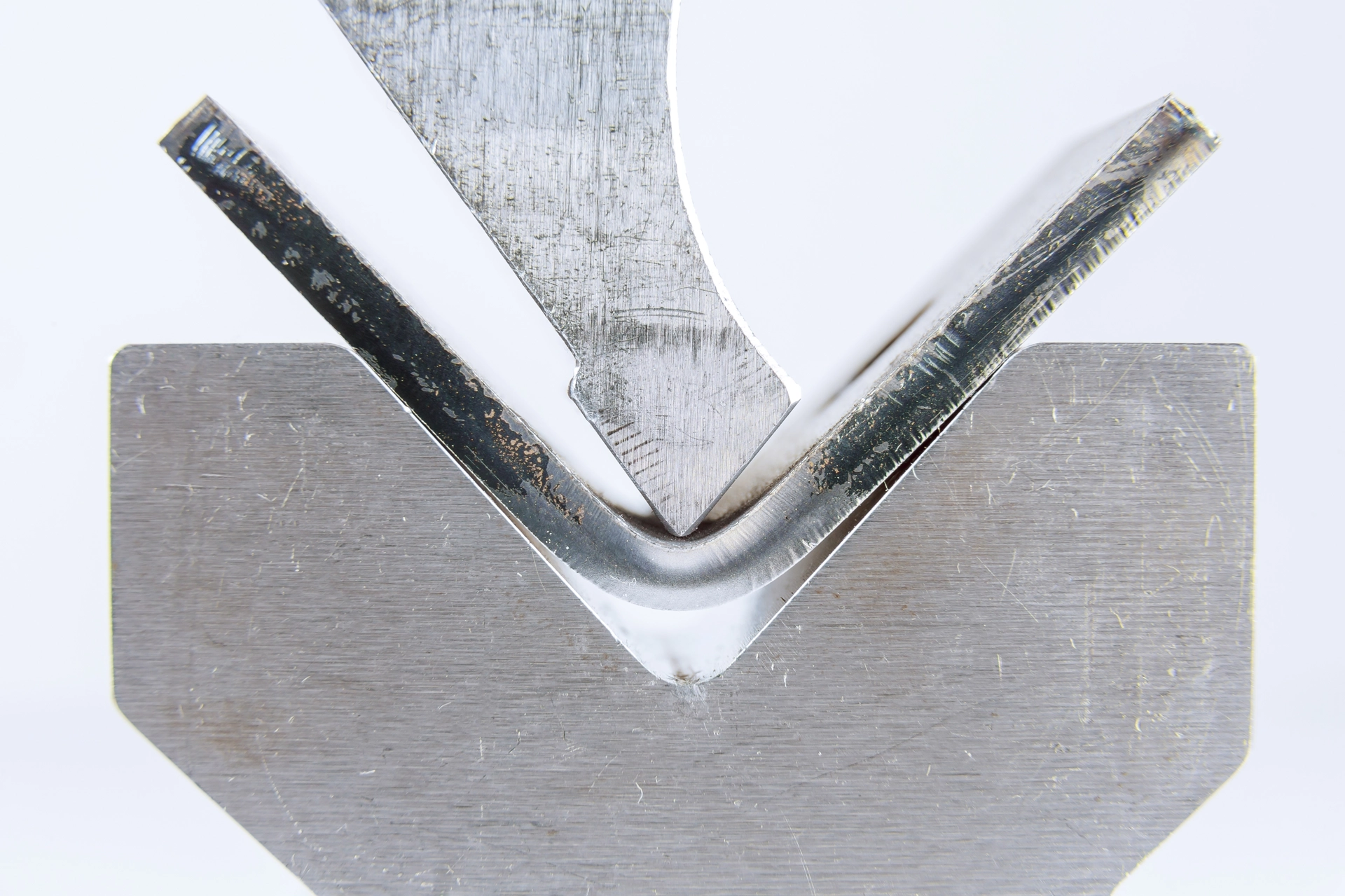
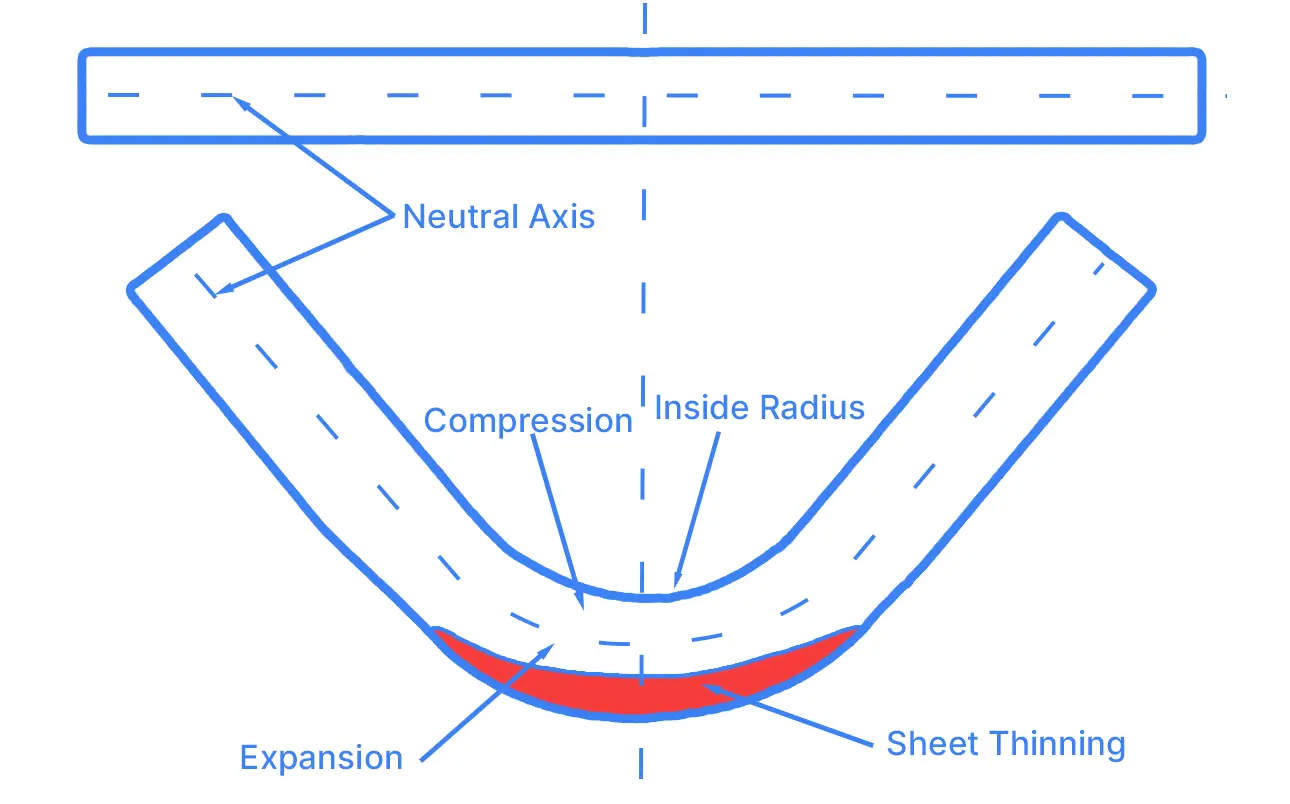
When sheet metal bends, the outside of the bend stretches and the inside compresses. Somewhere between them is a layer that does neither. That layer is the neutral axis, and it keeps its original length through the bend.
K-factor is where the neutral axis sits, as a fraction of the material thickness, measured from the inside of the bend:
K = t / T
where t is the distance from the inside surface to the neutral axis and T is the thickness. A K-factor of 0.5 puts the neutral axis in the middle of the sheet. Most textbook values fall between 0.3 and 0.5, because bending pushes the neutral axis toward the inside of the bend.
Why K-factor matters
Because the neutral axis keeps its length, it tells you how much flat material a bend uses. That length is the bend allowance:
BA = θ × (R + K × T)
θ is the angle the sheet turns through in radians, R is the inside radius, and T is the thickness. CAD uses the bend allowance to unfold your 3D model into a flat pattern. A small change in K-factor matters more than it looks:
- Flange lengths. On 0.060" sheet, moving K from 0.33 to 0.42 changes a single 90° bend by about 0.008". A part with six bends can be off by more than 0.040".
- Holes and slots near bends. Features cut in the flat move with the bend allowance. A hole that should line up with a mating part after bending ends up in the wrong place.
- Tabs, slots, and boxes. Self-fixturing parts and enclosures need every flange to land within a few thousandths, or tabs won't seat and corners won't close.
- Scrap. A wrong K-factor usually shows up as a full batch of parts that are all wrong by the same amount.
What changes K-factor
K-factor is not a material constant. It depends on the whole bending setup:
- Material. Ductility and strength change how the sheet stretches and compresses.
- Thickness. Thicker sheet usually has a lower K-factor than thinner sheet of the same material.
- Radius to thickness ratio. Tight radii push the neutral axis inward and lower K. Once the radius is more than about three times the thickness, K approaches 0.5.
- Bending method. Air bending, bottoming, and coining all give different results.
- Tooling. In air bending, the V-die opening often sets the finished radius more than the punch does.
K-factor calculator
Use Flat length from K to turn a K-factor into bend allowance, bend deduction, and the flat length of a two-flange part. Pick a Fabworks material to load the thickness, inside radius, and K-factor we bend with. Flange lengths are outside dimensions, measured to the intersection of the two outside faces. Bend angle is how far the sheet turns, so a square bend is 90°.
Use K from a test bend to find the K-factor for your own press brake. Cut a blank of known length, bend it, measure both outside flanges, and enter all three with the thickness, radius, and angle you used.
K-factor calculator
Turn a K-factor into bend allowance, bend deduction, and flat length.
Pick a Fabworks material to load its thickness, inside radius, and K-factor.
- Flat length
- 2.9024 in
- Bend allowance
- 0.1024 in
- Bend deduction
- 0.0976 in
- Outside setback
- 0.1000 in
Fabworks bend radii and K-factors
The chart shows the inside radius each of our setups forms on a 90° bend, by thickness. Hover a point for its radius and K-factor, or switch to the table. Galvanized steel uses the values for mild steel of the same thickness.
Fabworks bend radii
Inside radius of a 90° bend by sheet thickness, with the K-factor that goes with it
These are the radii our setups actually form, measured from test bends, each with the K-factor that goes with it. Most come out at 0.42. Where the sheet bends tight to the punch, the radius stays at the punch radius and the K-factor is a little higher. Always use the K-factor and inside radius as a pair.
Our bending guidelines show the same radii, along with the minimum flange and other limits for each material.
Setting K-factor in Onshape
Onshape stores the K-factor on the Sheet metal model feature, along with the thickness and bend radius. Every flange, bend, and the flat pattern in that model use those values. The K-factor field is easy to miss, because it sits in the Material section of the dialog.
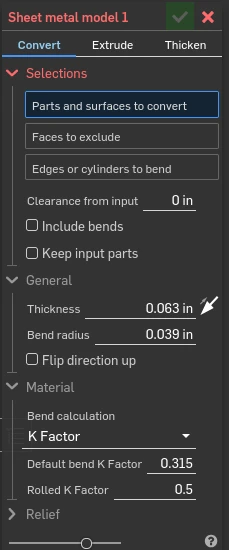
- Open the sheet metal model. Start a new Sheet metal model from the Sheet metal toolbar, or right-click the existing Sheet metal model feature in the Feature list and choose Edit.
- Set the thickness and bend radius. Under General, enter the Thickness of the stock and the Bend radius that goes with your K-factor. For Fabworks materials, enter the inside radius from the chart above.
- Expand the Material section. Click Material to open it.
- Set the K-factor. Leave Bend calculation on K Factor, then enter your measured value, or the K-factor listed beside that radius in the chart, in Default bend K Factor.
- Confirm and check the flat. Click the green check, then open the flat pattern to see the updated blank.
A few things to keep in mind:
- K-factor is per sheet metal model. A Part Studio with several sheet metal models needs the value set on each one.
- Use variables for repeated values. Define
#thickness,#radius, and#kwith Variable features and reference them in the dialog. Switching materials becomes a three-value change. - Rolled walls have their own field. If you convert cylindrical faces, set Rolled K Factor as well.
- Ordering from us? You can skip this. Export a STEP from Onshape and upload it, and we unfold it with our own values.
See every bend before you order
When you upload a STEP file, the press brake simulation shows every bend on our tooling, so you can see the finished part before it is made.
Order Sheet Metal Parts
Upload a 2D DXF or 3D STEP file for an instant laser cutting quote. Quote in seconds, order in minutes, receive parts in days.
or drag and drop
STEP / DXF up to 24MB
Your files are safe, secure, and retain all intellectual rights.